Google Keep Review
Google Keep is a handy little app that helps you keep notes and offers integration with Google Drive. As you can read in our Google Keep review, however, it doesn't really rise above the level of "handy" due to having simply fewer features than the competition.


— Last Updated: 2026-06-29T15:13:09+00:00 Facts checked by Jasna Mishevska
When that little light bulb goes off in your head, Google Keep is helpful. This free, cloud-based note-taking app lets you quickly save ideas, shopping lists and reminders, then access them across your devices or integrate them into Google Docs.
Google Keep lets you create an unlimited number of notes, organize them with labels and sync everything through your Google account. Although it lacks the advanced organization and formatting tools of some competing note-taking apps, its simplicity and ease of use earned Google Keep a spot on our list of the best note-taking apps. Continue reading our Google Keep review to learn more.
-
01/30/2023 Facts checked
Updated this review for accuracy and added FAQs.
-
06/29/2026 Facts checked
We’ve updated our review to include new Google Keep information and key details, like its Gemini integration.
What is Google Keep?
Google Keep is a free, cloud-based note-taking app from Google that lets you capture ideas, to-do lists, reminders and other notes quickly. It syncs across devices through your Google account, making it easy to access notes from your computer, phone or tablet.
While it doesn’t offer advanced organization or formatting, its simple interface and tight integration with other Google services make it a convenient choice.
Avoid Costly Project Management Mistakes – Get Free Tips Today!

- Discover 10 fundamentals of project management
- Understand step-by-step plans for PM execution
- Learn tips to avoid 5 common mistakes by beginners
Google Keep Alternatives
- 1
- 2
- 3
- 4
- 5



Google Keep Review: Strengths & Weaknesses
Pros:
- Completely free
- Unlimited notes
- Easy to use
- Voice notes
- Reminders
Cons:
- No notebooks
- 20,000 character limit
- Label limit of 50
- No desktop client
- No automated notes
What Features Does Google Keep Offer?
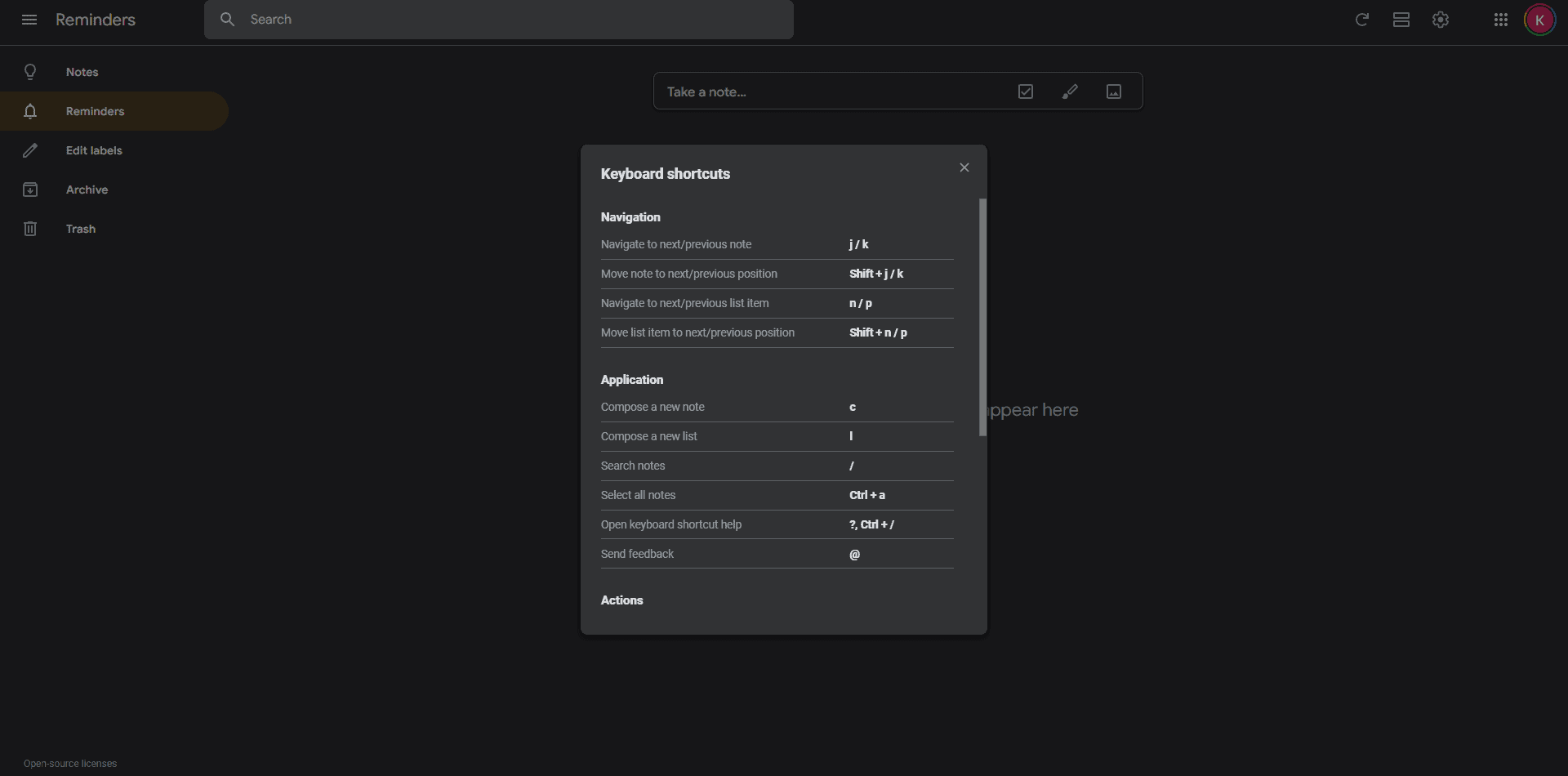
Although at first glance Google Keep looks similar to a Post-it note board, it lets you create all different types of memos. It’s also tied to your Google account, so whichever device you use it on, your notes will be synced across your account, provided you’re connected to the internet and logged in.
It’s easy to make a quick note, and you have the choice of doing so by text, checklist, voice recording, drawing or picture. The notes have a character limit of 20,000, which is longer than the likes of Zoho Notebook (read our Zoho Notebook review), but shorter than, say, Box Notes, which allows a whopping 500,000 characters (read our Box Notes review).
Google Keep Gemini Integration
Google Keep also integrates with Google’s Gemini AI to help you work with your notes more efficiently. You can use Gemini to summarize notes, generate ideas, create lists and draft content based on your existing notes. This makes it easy to organize information and brainstorm without leaving the Google ecosystem.
Availability depends on your Google account type, as some Gemini features require a paid Google AI plan.
What Is Google Keep’s Notes Limit?
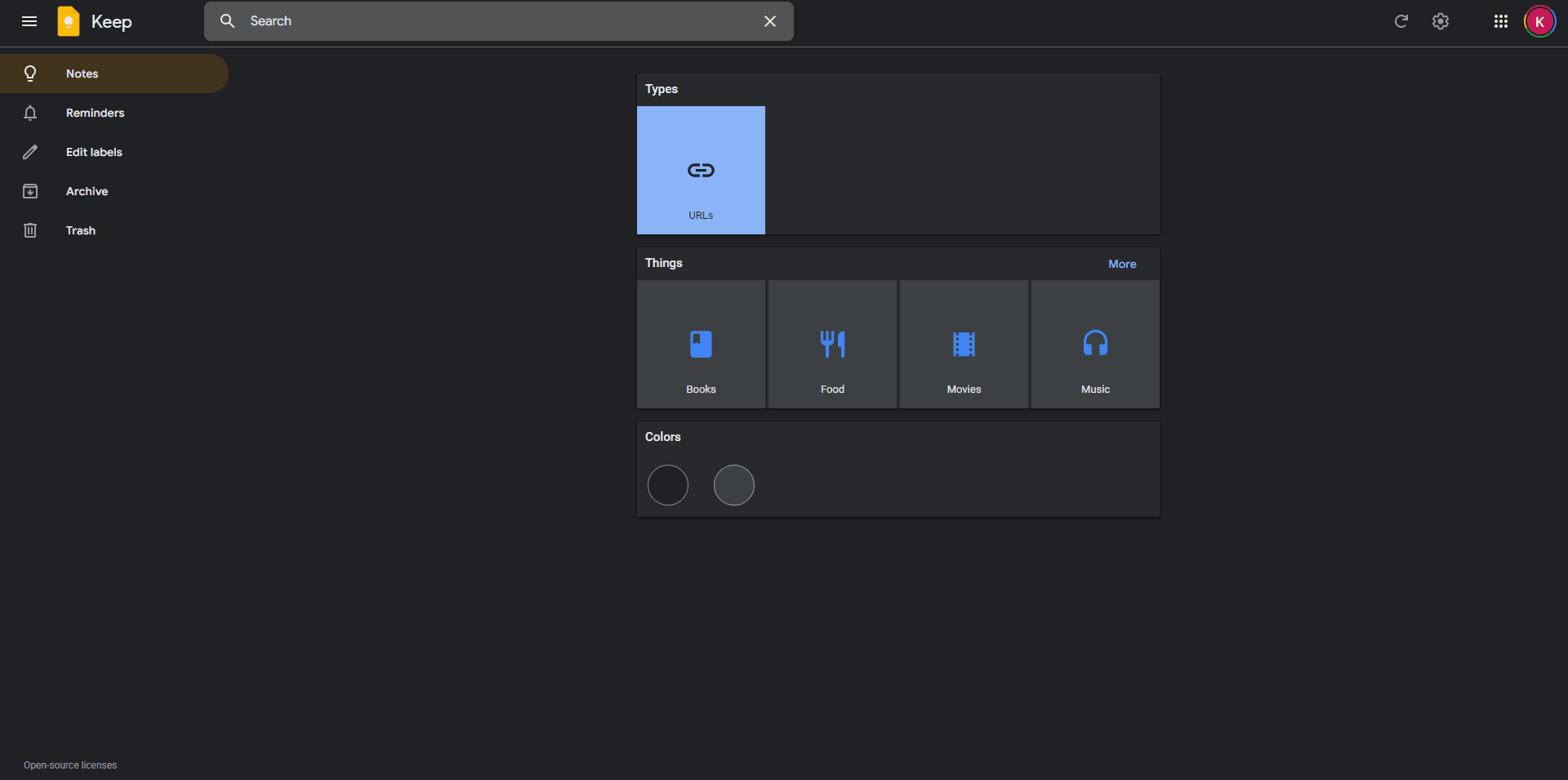
Google Keep allows unlimited note creation with no bandwidth restrictions, and it doesn’t count against your Google Drive storage limit.
Google Keep is missing some of the features that its competitors have, though, such as multiple notebooks and video notes. Plus, it lacks rich-text editing, so it’s not the best choice if you’re creating research notes or using it for business.
What you do get is the ability to add all of its features into one note. You could have a picture, drawing, voice memo, tick box list and text note, all in one place. This is really useful for notes such as recipes, as you can pop in a picture at the top and have, say, an ingredients checklist underneath.
Plus, if you want to make a note into something a bit more elegant, you can integrate it directly into a Google Doc. You can then add formatting and anything else you see fit, but remember it won’t be a “note” anymore.
Google OCR in Keep
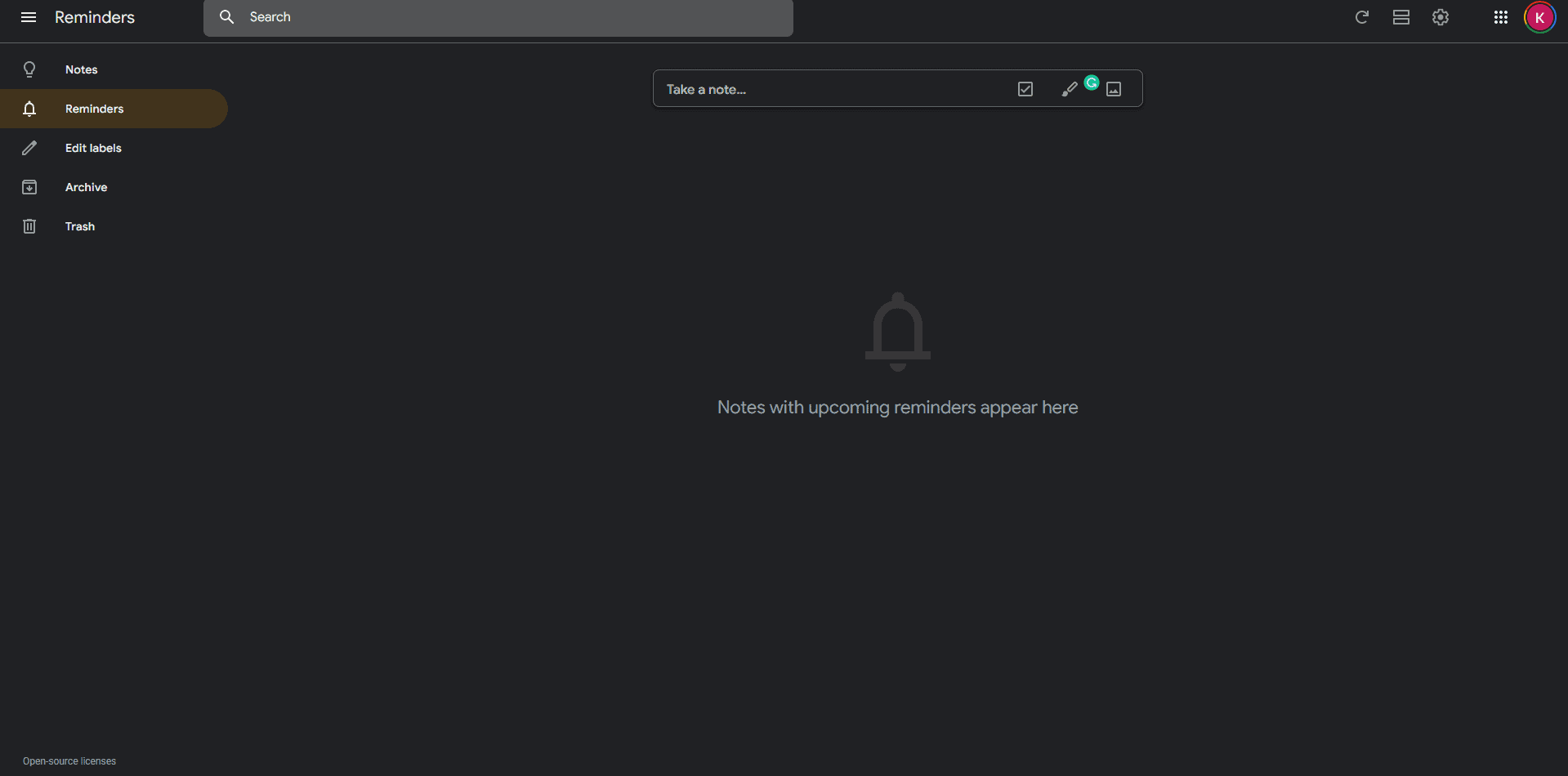
You can use Keep’s optical character recognition (OCR) to extract text from clipped sources and other images. Plus, with Google’s accurate speech recognition, you can dictate notes and let Google Keep transcribe them.
Google Keep also lets you create bulleted lists, as well as checklists, which are great for things like grocery shopping, as you can check off items as you go.
You can also share notes and assign collaborators so others can add to the list or check items off. No more pointing fingers when someone forgets to buy milk.
Plus, you can set reminders by date and time or by location, which is handy if you want your shopping list to pop up when you get to the store. While it’s excellent for things like these, any bigger task and you’d be better off with a dedicated project management tool.
Google Keep Mobile Apps
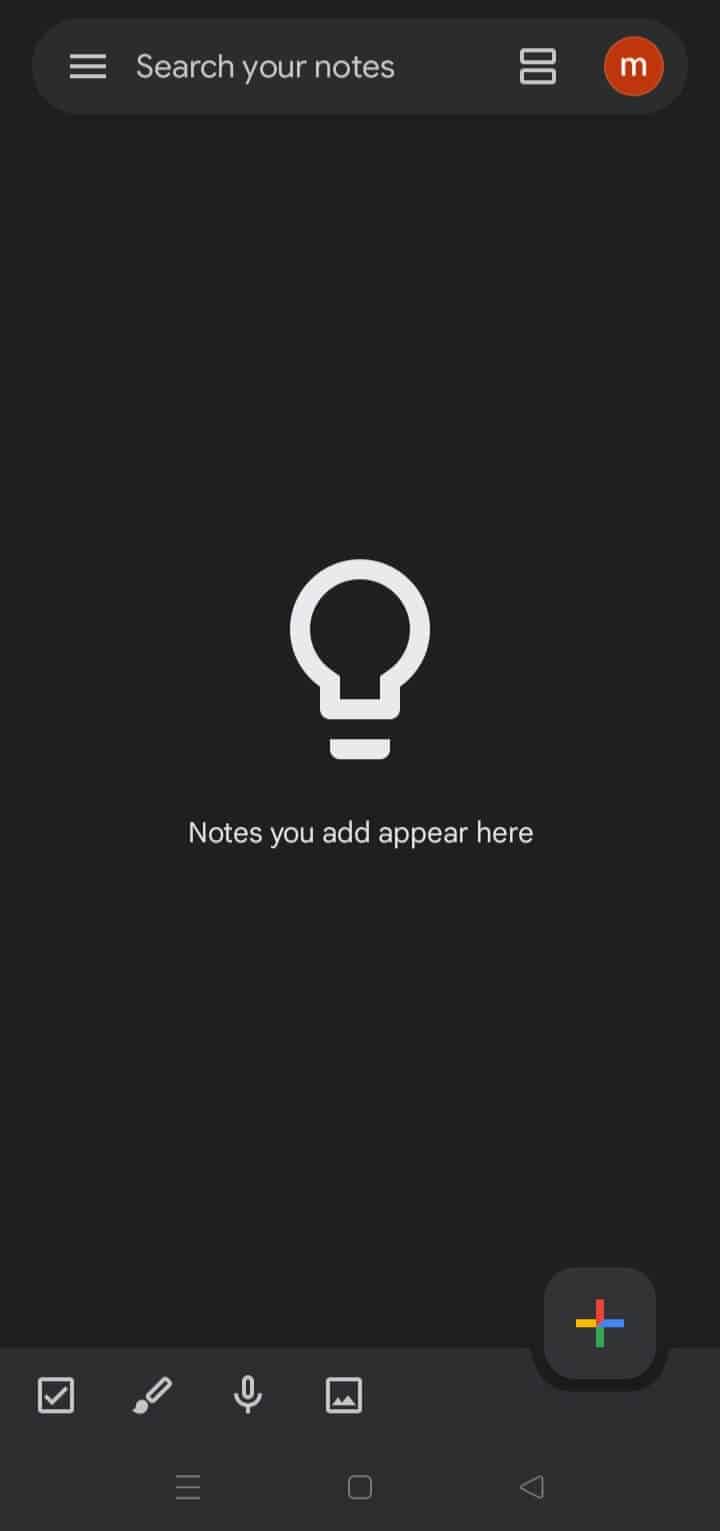
There are apps available for Android and iOS, and you can use Keep within a browser, too. However, there isn’t a dedicated desktop client. Instead, there’s a Google Chrome app that, once installed, works as a stand-alone app. You can open it from your Chrome “apps” page or, in Windows 10, you can go to the “start” menu after installing and pin it to the taskbar.
Each version has pretty much the same layout, too, so you won’t get confused looking at a different interface as you switch devices.
Without even opening the app, you can quickly save content from a website, document and images into Google Keep by using the mobile app. To do so, simply highlight the content you want to save. Next, click the “share” button that will show up above the highlighted text. From the list of apps that appears, select the Google Keep logo.
Doing that will make a small window appear with your selected text and a removable page link in Keep. Then you can add a title or label before clicking “save.”
If you want to make any other changes, such as color, you can click on the small arrow in the right-hand corner to open Keep in the web browser and edit the note from there.
You can’t clip a whole webpage like you can in some other note-taking apps, such as Evernote or OneNote (read our OneNote review). If you don’t highlight any content, it will just clip the page link, after which you can add things in yourself.
Overall, Google Keep lacks some of the more advanced features provided by competitors like Evernote, but it still has more than enough functions for routine use.
Google Keep Text Formatting
Google Keep now supports rich-text formatting on the web and Android, letting you add headings, bold, italic and underlined text to your notes.
While its formatting tools are still more limited than in dedicated note-taking apps like Evernote or Microsoft OneNote, they make it much easier to structure notes and highlight important information in previous versions.
Google Keep Overview
| Features |  |
|---|---|
| Sync | |
| Share | |
| Embed note links | |
| Tag notes | |
| File attachements | |
| Email notes | |
| Web clipper | |
| Voice recorder | |
| Video recorder | |
| Handwriting support | |
| Ink-to-Text Coversion | |
| Optical character recognition (OCR) | |
| IFTTT/Zapier |
How Much Does Google Keep Cost?
Google Keep costs absolutely nothing — it’s completely free to use. It doesn’t cost a penny, so it’s definitely a good choice if you’re a bit low on cash.
Plus, there’s no limit to how many notes you can keep, and the fact that it doesn’t contribute to your Google Drive storage space, unlike OneDrive (read our OneDrive review), makes Google Keep even more appealing.
Because it is completely free, offers unlimited storage capacity, and has many helpful features seen in paid note-taking apps, Google Keep is incomparable in terms of pricing.
What Is Google Keep’s User Experience Like?
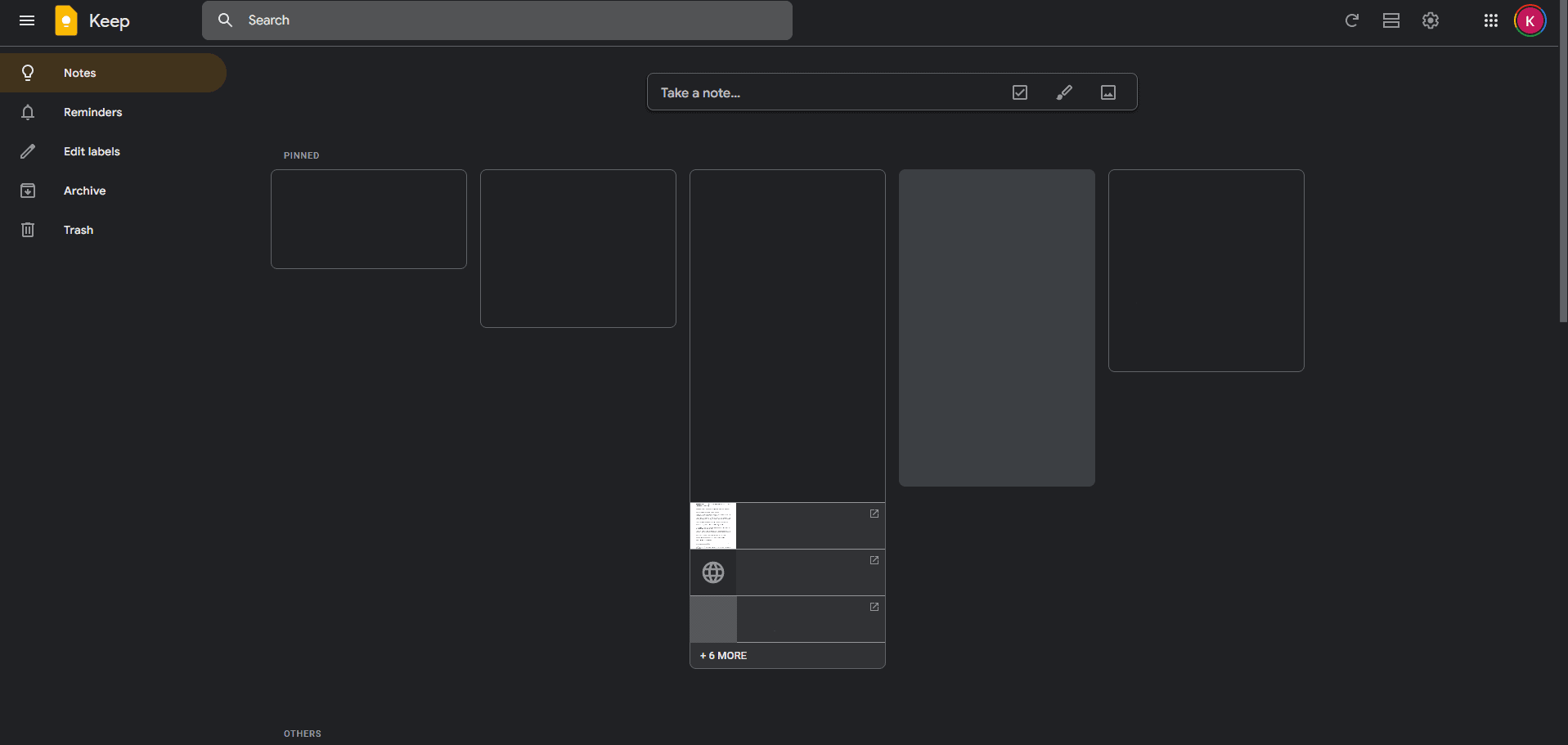
Google Keep’s user experience is characterized by its simple UI, which can be both an advantage and limitation. Other note-taking apps, such as Evernote, offer a completely decked-out interface, giving you more options to choose from. That said, Google Keep’s simple layout makes it easy to see what’s what.
Though there is no desktop client, the Chrome app pretty much replaces the need for one. To get it, you’ll need to download the Chrome web browser, if you haven’t already. Alternatively, the browser version offers a similar experience.
With the layout of all the available clients being almost identical, it’s no surprise that the Android and iOS apps are easy to use, too — it’s one of the best note-taking apps for Android. There are only a few minor differences, such as the settings menu being in different locations, and both apps are a pleasure to navigate.
The center window displays your notes by default in a tile format, but you can change that to a list display instead. The hamburger menu lets you switch between notes and reminders, go to a specific label or create a new one, as well as see your archived or deleted notes. On mobile apps, you can also access the settings from here.
It’s simple to make a new note. Just start typing into the box that says “Take a note…” or choose one of the other note-taking methods: tick boxes, drawing, voice memo or picture. We like the other additions, such as color coding, labels and reminders, making it easier to organize notes.
Google Keep Drawing Tools
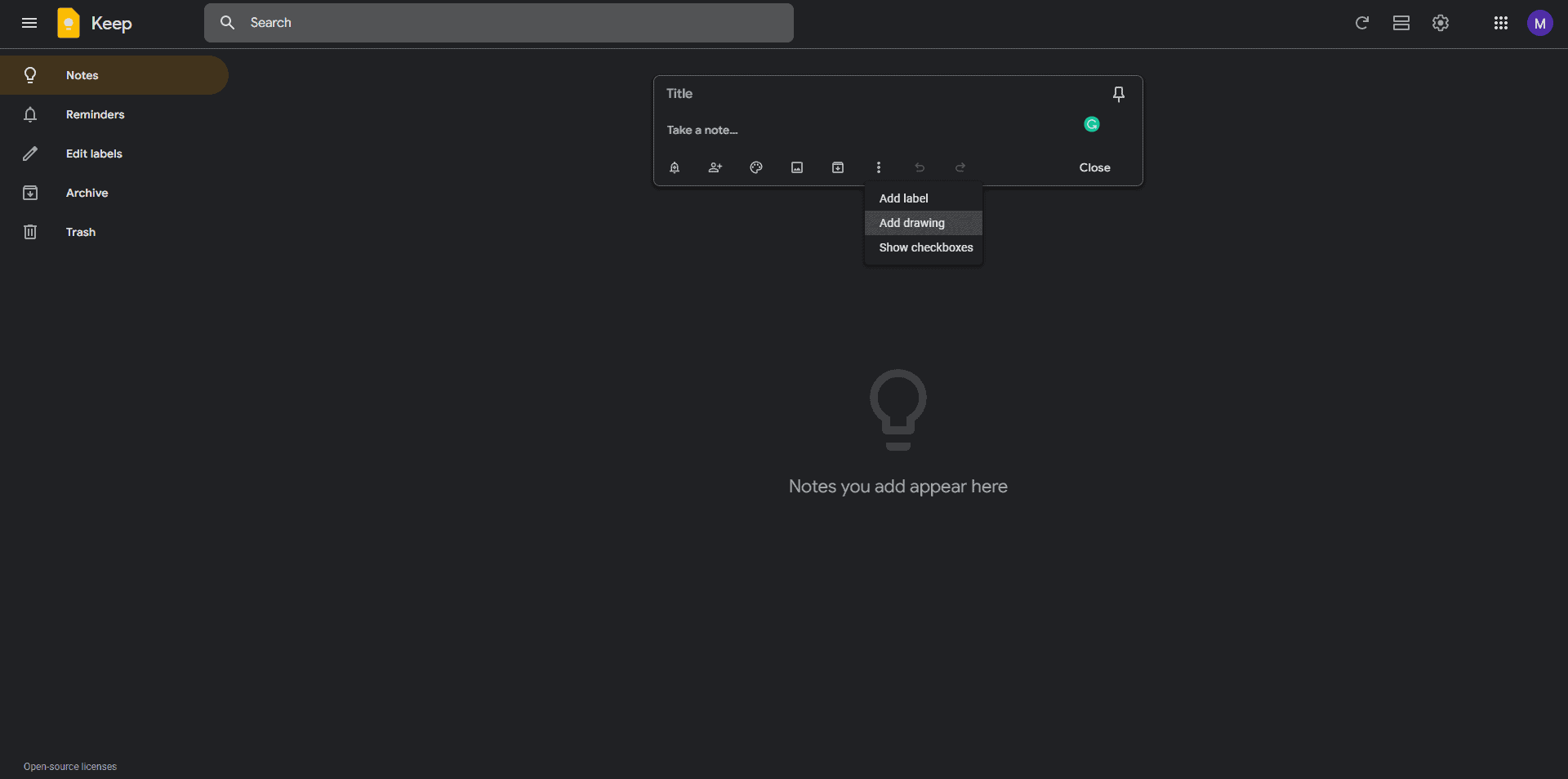
If you want to draw a note, there are a few tools included. You get a pen, marker and highlighter, and you can customize the color and size of these tools in the dropdown menu. You also get an eraser, and if you click its dropdown menu, you can clear the page.
The cutting tool allows you to move, rotate and resize selected content. You can even choose a grid to draw on: squares, dots or ruled lines.
The Google Keep extension is handy if you want to quickly grab something from the internet or save a page link, but it’s a shame that you can’t clip entire webpages.
Overall, Google Keep is great if you’re just after a simple tool to quickly jot down notes and ideas. It works well for shopping lists, and it’s easy on the eyes, too.
Plus, if you like to take notes orally, Google Keep is one of the better options due to Google’s speech-recognition capabilities. Combine all that with the fact that it’s free, and it definitely shines as a great tool. Simply put, Google Keep is easy to use and integrates with other Google products for a better user experience.
How Secure and Private Is Google Keep?
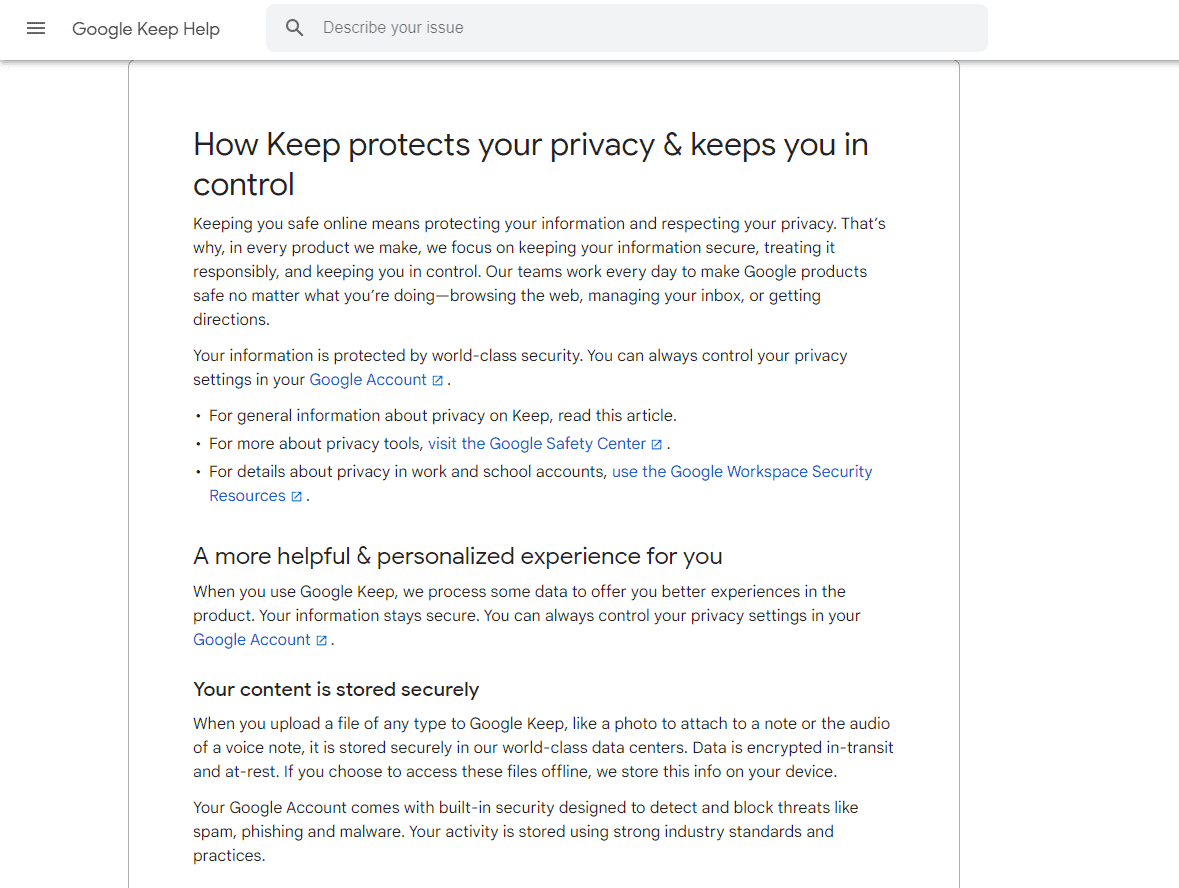
There isn’t much information on Google Keep’s security, but if we presume it’s the same as every other Google app, then there are some issues. Google compiles data for advertising and targeted-marketing purposes. When you read its terms of service, you’ll notice that it’s more in-depth than some think.
First, it states that when you upload, submit, store, send or receive content, you give Google and the companies it works with the right to use that content. It goes into more detail and specifically states the following:
“Our automated systems analyze your content (including emails) to provide you with personally relevant product features, such as customized search results, tailored advertising and spam and malware detection. This analysis occurs as the content is sent, received and when it is stored.”
Basically, Google doesn’t tailor adverts only by looking at what you’ve searched for in your search engine. Instead, it can look at anything you have stored with them, which we presume includes Google Keep, as well.
Encryption & Sensitive Data
On the plus side, Google’s privacy policy does say it uses encryption to keep your information secure, but it also mentions Google needing to retain information sometimes, among other things.
Keep isn’t the best place to save your sensitive data, such as login information and passwords, because you’re most likely going to be logged in to your Google account on at least one device.
That means anyone who gets hold of it can access your Google services, including Keep. You could protect your account, though, with two-factor authentication and by making sure to log out when you’re finished.
Google Keep is simply lacking in privacy. The other note-taking applications are all encrypted, and some of them, like Apple Notes, even allow password-protected notes.
Final Verdict
Google Keep is a simple, yet satisfying note-taking app. It’s great for getting random notes down quickly, and organizes them pretty well, too. It falls short in some areas, though, such as not having notebooks.
With Keep being free, it’s a good tool to have on hand, even with its limitations. You can make and view notes quickly and easily, organize them effectively and sync them between devices. That said, if you’re after more organization options, Evernote may be a better choice.
If you’re still undecided, our Google Drive vs Evernote comparison provides an in-depth analysis into both apps’ features.
What’s your verdict on Google Keep? Share your opinions in the comment section. Thank you for reading.
FAQ
The character limit for a note in Google Keep is 20,000 characters or 20 to 30 pages.
Google Keep uses encryption, but it also allows Google to access and store the data in your notes. This means that, while your notes might be safe from hackers, they’re still accessible to Google.
It can be an excellent free option if you need a simple app with basic functions to take notes.
Google only offers one note-taking app, Google Keep, which was formerly known as Google Keep Notes. Google Notes is not a separate app, it is just an older name for Google Keep.
No, Google just recently migrated the desktop app of Google Keep to the web app.